
OneDrive vs SharePoint vs Azure Files: Where Should Your Files Live?
OneDrive vs SharePoint vs Azure Files in plain English: where your Microsoft 365 files belong, personal, shared, or legacy, and the one rule that settles it.
Executive Summary
- OneDrive is your personal "Backpack" (Drafts & Private).
- SharePoint is the company "Library" (Published & Shared).
- Azure Files is the "Warehouse" (Legacy Apps & Archives).
- Teams is just a window into SharePoint (The Interface).
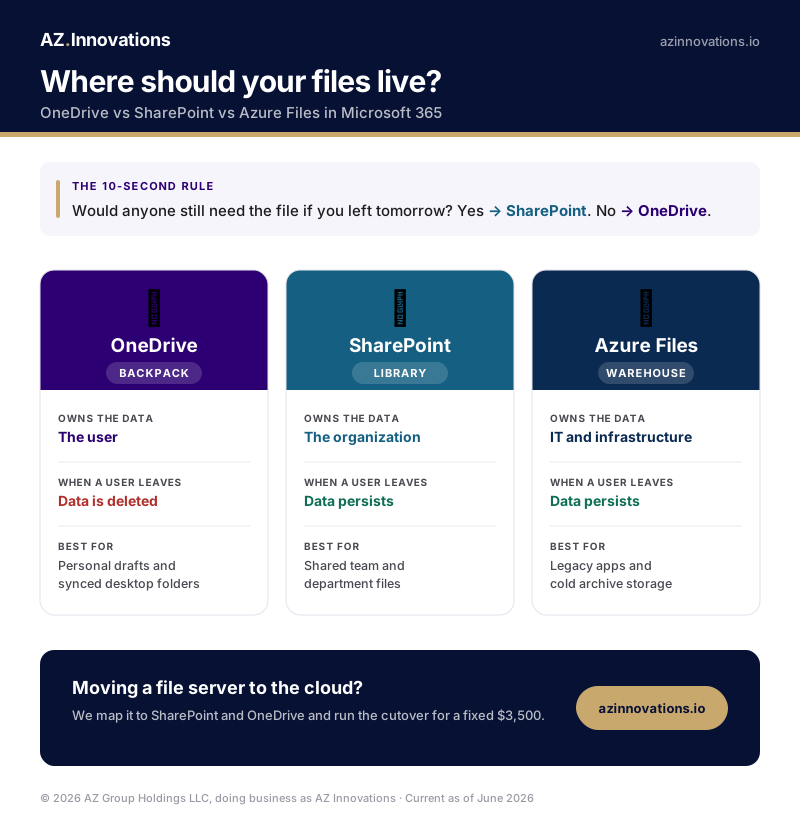
The one rule that settles most arguments: if you left the company tomorrow and someone would still need the file, it belongs in SharePoint. If not, it belongs in OneDrive. Everything below is the detail behind that rule.
Microsoft gives you three places to put a file and very little guidance on choosing between them. The cost of guessing shows up later, in permissions nobody can audit and in business files sitting inside one person's account.
The "At a Glance" Cheat Sheet
| Feature | OneDrive | SharePoint | Azure Files |
|---|---|---|---|
| The Analogy | Your Backpack | The Library | The Warehouse |
| Who Owns Data? | The User (You) | The Organization | IT / Infrastructure |
| When User Leaves | Held for a retention window, 30 days by default, then deleted | Data Persists | Data Persists |
| Best For | Personal and draft files | Shared and team files | Legacy apps and cold archive |
| Permissions | Ad-Hoc Sharing | Structured Groups | NTFS / Share-level |
Is Azure the same as OneDrive?
No. Azure is a full cloud-computing platform that runs virtual machines, databases, and storage; OneDrive is personal file storage inside Microsoft 365. They are not substitutes, so "Azure vs OneDrive" is really the wrong question. The piece of Azure that compares to OneDrive and SharePoint is Azure Files, the SMB file-share service covered in section 4. The real decision for your company's files is OneDrive vs SharePoint vs Azure Files, and the next list settles it.
When to use each
- Use OneDrive when the file supports one person's work and is not ready to share: drafts, scratch files, synced desktop folders.
- Use SharePoint when several people own or need the file, or the business needs it to outlast whoever created it: shared documents, project files, department drives.
- Use Teams as the interface onto SharePoint. Every Team you create is a SharePoint site underneath, so the files live in SharePoint either way.
- Use Azure Files only when a legacy app needs a real drive letter or UNC path, or you are archiving cold data SharePoint cannot serve. If that is you, the move is a scoped file-server migration rather than a do-it-yourself job.
🎒 1. OneDrive for Business: one person's private working files
Think of OneDrive as your employee's physical desk. It is personal. It is private by default.
Best Use Cases
- Drafts & Scratchpads: Files you are working on before they are ready for the team.
- Device Sync (KFM): Syncing your Desktop, Documents, and Pictures folders so if your laptop breaks, you lose nothing.
Critical Governance Risk
OneDrive is not a department share. A departed user's OneDrive is not wiped on their last day. When the account is deleted it is held for a retention window you control, 30 days by default and configurable up to ten years, and their manager can be granted access before that window closes. If Finance or HR has been running out of one executive's OneDrive folder, deleting the account breaks every shared link, nobody can say who still had access, and at the end of the window the files are deleted.
🏢 2. SharePoint Online: the files the business owns
SharePoint is the "Vertebrae" of collaboration. If a file belongs to a Project, Team, or Department, it belongs here.
Modern Capabilities
- ✅ Co-Authoring: 10 people editing at once.
- ✅ Versioning: Roll back to yesterday's draft.
- ✅ Metadata: Tagging > Folders.
Security Benefits
- 🔒 Central Audit Logs: See who opened what.
- 🔒 Retention Labels: Auto-delete after 7 years.
- 🔒 Permissions: Group-based access.
Rule of Thumb: If you leave the company, the files in SharePoint stay. This ensures business continuity.
💬 3. Microsoft Teams: the window onto SharePoint
Confusion here causes the most sprawl. Teams is not storage. Teams is an interface.
The Governance Trap: If you allow users to create Teams unrestricted, you end up with hundreds of orphaned SharePoint sites. A mess in Teams = A mess in your file architecture.
☁️ 4. Azure Files: the mapped drive legacy apps still need
Azure Storage is the "Heavy Lifter" for scenarios where SharePoint fails. It supports SMB protocols (like a traditional mapped drive).
When to use Azure Files:
- Legacy Apps: Software that needs a direct UNC path (e.g.
\\server\share) and doesn't speak "Cloud". - Cold Storage: Archiving 10TB of data that nobody opens but you legally can't delete.
- Hybrid Profiles: FSLogix profiles for Azure Virtual Desktop (AVD).
Check your permissions before you turn on Copilot
There is a newer reason to get this architecture right, and it is bigger than tidiness. Microsoft 365 Copilot answers questions using whatever the asking user can already reach. Every "anyone with the link" share, every department library quietly opened to the whole organization, every personal OneDrive folder shared too broadly becomes something an employee can surface with a one-line prompt. The storage decisions this guide covers are no longer just a filing question; they are the map of what AI will read.
Two practical moves before any Copilot rollout: first, inventory where sensitive files actually live and who can reach them, using the structure rules above; second, fix the sharing model before the rollout rather than after the first awkward prompt result. The wider problem, including the AI tools employees adopt without approval, is covered in the shadow AI governance guide, and the licensing side in the Copilot pricing guide.
Common Architecture Questions
Can I just use OneDrive for everything?
Technically yes, and it is a common way a small business ends up stuck. Every shared file then hangs off one person's account. When that account is deleted, the OneDrive is held for a retention window, 30 days by default, and deleted at the end of it, so the business gets a deadline to rescue files it should have owned from the start. Anything two people need belongs in SharePoint.
How do I migrate from a File Server?
Do not lift and shift the folder tree as it stands. Map the home drives (H:) to OneDrive and the department drives (S:) to SharePoint libraries first, then move. That mapping, with a tested cutover and a reconciliation report, is the fixed-fee file server to SharePoint and OneDrive migration at $3,500. That price covers under 1 TB of data, or up to 5 TB where permissions are simple and set by department. More than 5 TB, or 1 to 5 TB with complex or unknown permissions, is scoped first as a Migration and Cutover Plan, $3,500 to $6,000.
OneDrive vs Azure Files: which do I use?
OneDrive is for one person's files inside Microsoft 365. Azure Files is for a legacy application that needs a mapped drive or UNC path, or for cold archive data. If your only reason to consider Azure Files is "we have always had a file server," the better destination is usually SharePoint, and that is a scoping conversation worth having before you pay for separate Azure storage.
Is SharePoint secure?
Yes, when it is configured properly. Two settings cause most of the trouble. The first is broken inheritance, where a folder or a single file stops following the permissions of the site above it and can quietly grant access to people the site owner never listed. The second is sharing links with no expiry date, which keep working for outside recipients long after the project that needed them ended. Both are fixable without moving any files.
Moving off a file server?
Mapping home drives to OneDrive and department drives to SharePoint, with a tested cutover and nothing lost, is a fixed-fee engagement: file server to SharePoint and OneDrive, $3,500. That price covers under 1 TB of data, or up to 5 TB where permissions are simple and set by department. Outside those bounds the move is scoped first as a Migration and Cutover Plan, $3,500 to $6,000. The picker on the migration page asks those two questions. Not sure the cloud is even cheaper than running your own server? Here is the five-year math. Moving off Google Workspace instead? Read what survives that move first.
Scope your migrationAbout the author
Written by the founder of AZ Innovations: a Microsoft-certified solutions architect, Top Rated on Upwork with a 100% Job Success score, who personally scopes and delivers every engagement. Name shared on the first call. See the delivered work or read a representative sample report.
Want this proven in your tenant?
The Migration & Cutover Plan turns this into scored findings and a fixed remediation plan for your environment.
$3,500 to $6,000